
Getting started with wxPython
Contents
A First Application: "Hello, World"
As is traditional, we are first going to write a Small "Hello, world" application. Here is the code:
Explanations:
app = wx.App(False) |
Every wxPython app is an instance of wx.App. For most simple applications you can use wx.App as is. When you get to more complex applications you may need to extend the wx.App class. The "False" parameter means "don't redirect stdout and stderr to a window". |
wx.Frame(None,wx.ID_ANY,"Hello") |
A wx.Frame is a top-level window. The syntax is wx.Frame(Parent, Id, Title). Most of the constructors have this shape (a parent object, followed by an Id). In this example, we use None for "no parent" and wx.ID_ANY to have wxWidgets pick an id for us. |
frame.Show(True) |
We make a frame visible by "showing" it. |
app.MainLoop() |
Finally, we start the application's MainLoop whose role is to handle the events. |
Note: You almost always want to use wx.ID_ANY or another standard ID (v2.8) provided by wxWidgets. You can make your own IDs, but there is no reason to do that.
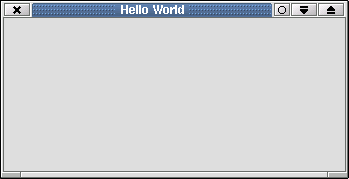
Run the program and you should see a window like this one:
Windows or Frames?
When people talk about GUIs, they usually speak of windows, menus and icons. Naturally then, you would expect that wx.Window should represent a window on the screen. Unfortunately, this is not the case. A wx.Window is the base class from which all visual elements are derived (buttons, menus, etc) and what we normally think of as a program window is a wx.Frame. This is an unfortunate inconsistency that has led to much confusion for new users.
Building a simple text editor
In this tutorial we are going to build a simple text editor. In the process, we will explore several widgets, and learn about features such as events and callbacks.
First steps
The first step is to make a simple frame with an editable text box inside. A text box is made with the wx.TextCtrl widget. By default, a text box is a single-line field, but the wx.TE_MULTILINE parameter allows you to enter multiple lines of text.
   1 #!/usr/bin/env python
   2 import wx
   3 class MyFrame(wx.Frame):
   4     """ We simply derive a new class of Frame. """
   5     def __init__(self, parent, title):
   6         wx.Frame.__init__(self, parent, title=title, size=(200,100))
   7         self.control = wx.TextCtrl(self, style=wx.TE_MULTILINE)
   8         self.Show(True)
   9
  10 app = wx.App(False)
  11 frame = MyFrame(None, 'Small editor')
  12 app.MainLoop()
In this example, we derive from wx.Frame and overwrite its __init__ method. Here we declare a new wx.TextCtrl which is a simple text edit control. Note that since the MyFrame runs self.Show() inside its __init__ method, we no longer have to call frame.Show() explicitly.
Adding a menu bar
Every application should have a menu bar and a status bar. Let's add them to ours:
   1 import wx
   2
   3 class MainWindow(wx.Frame):
   4     def __init__(self, parent, title):
   5         wx.Frame.__init__(self, parent, title=title, size=(200,100))
   6         self.control = wx.TextCtrl(self, style=wx.TE_MULTILINE)
   7         self.CreateStatusBar() # A Statusbar in the bottom of the window
   8
   9         # Setting up the menu.
  10         filemenu= wx.Menu()
  11
  12         # wx.ID_ABOUT and wx.ID_EXIT are standard IDs provided by wxWidgets.
  13         filemenu.Append(wx.ID_ABOUT, "&About"," Information about this program")
  14         filemenu.AppendSeparator()
  15         filemenu.Append(wx.ID_EXIT,"E&xit"," Terminate the program")
  16
  17         # Creating the menubar.
  18         menuBar = wx.MenuBar()
  19         menuBar.Append(filemenu,"&File") # Adding the "filemenu" to the MenuBar
  20         self.SetMenuBar(menuBar)  # Adding the MenuBar to the Frame content.
  21         self.Show(True)
  22
  23 app = wx.App(False)
  24 frame = MainWindow(None, "Sample editor")
  25 app.MainLoop()
TIP: Notice the wx.ID_ABOUT and wx.ID_EXIT ids. These are standard ids provided by wxWidgets (see a full list here). It is a good habit to use the standard ID if there is one available. This helps wxWidgets know how to display the widget in each platform to make it look more native.
Event handling
Reacting to events in wxPython is called event handling. An event is when "something" happens on your application (a button click, text input, mouse movement, etc). Much of GUI programming consists of responding to events. You bind an object to an event using the Bind() method:
This means that, from now on, when the user selects the "About" menu item, the method self.OnAbout will be executed. wx.EVT_MENU is the "select menu item" event. wxWidgets understands many other events (see the full list). The self.OnAbout method has the general declaration:
Here event is an instance of a subclass of wx.Event. For example, a button-click event - wx.EVT_BUTTON - is a subclass of wx.Event.
The method is executed when the event occurs. By default, this method will handle the event and the event will stop after the callback finishes. However, you can "skip" an event with event.Skip(). This causes the event to go through the hierarchy of event handlers. For example:
When a button-click event occurs, the method OnButtonClick gets called. If some_condition is true, we do_something() otherwise we let the event be handled by the more general event handler. Now let's have a look at our application:
   1 import os
   2 import wx
   3
   4
   5 class MainWindow(wx.Frame):
   6     def __init__(self, parent, title):
   7         wx.Frame.__init__(self, parent, title=title, size=(200,100))
   8         self.control = wx.TextCtrl(self, style=wx.TE_MULTILINE)
   9         self.CreateStatusBar() # A StatusBar in the bottom of the window
  10
  11         # Setting up the menu.
  12         filemenu= wx.Menu()
  13
  14         # wx.ID_ABOUT and wx.ID_EXIT are standard ids provided by wxWidgets.
  15         menuAbout = filemenu.Append(wx.ID_ABOUT, "&About"," Information about this program")
  16         menuExit = filemenu.Append(wx.ID_EXIT,"E&xit"," Terminate the program")
  17
  18         # Creating the menubar.
  19         menuBar = wx.MenuBar()
  20         menuBar.Append(filemenu,"&File") # Adding the "filemenu" to the MenuBar
  21         self.SetMenuBar(menuBar)  # Adding the MenuBar to the Frame content.
  22
  23         # Set events.
  24         self.Bind(wx.EVT_MENU, self.OnAbout, menuAbout)
  25         self.Bind(wx.EVT_MENU, self.OnExit, menuExit)
  26
  27         self.Show(True)
  28
  29     def OnAbout(self,e):
  30         # A message dialog box with an OK button. wx.OK is a standard ID in wxWidgets.
  31         dlg = wx.MessageDialog( self, "A small text editor", "About Sample Editor", wx.OK)
  32         dlg.ShowModal() # Show it
  33         dlg.Destroy() # finally destroy it when finished.
  34
  35     def OnExit(self,e):
  36         self.Close(True)  # Close the frame.
  37
  38 app = wx.App(False)
  39 frame = MainWindow(None, "Sample editor")
  40 app.MainLoop()
Note: Instead of
1 wx.MessageDialog( self, "A small editor in wxPython", "About Sample Editor", wx.OK)
We could have omitted the id. In that case wxWidget automatically generates an ID (just as if you specified wx.ID_ANY):
1 wx.MessageDialog( self, "A small editor in wxPython", "About Sample Editor")
Dialogs
Of course an editor is useless if it is not able to save or open documents. That's where Common dialogs come in. Common dialogs are those offered by the underlying platform so that your application will look exactly like a native application. Here is the implementation of the OnOpen method in MainWindow:
   1     def OnOpen(self,e):
   2         """ Open a file"""
   3         self.dirname = ''
   4         dlg = wx.FileDialog(self, "Choose a file", self.dirname, "", "*.*", wx.FD_OPEN)
   5         if dlg.ShowModal() == wx.ID_OK:
   6             self.filename = dlg.GetFilename()
   7             self.dirname = dlg.GetDirectory()
   8             f = open(os.path.join(self.dirname, self.filename), 'r')
   9             self.control.SetValue(f.read())
  10             f.close()
  11         dlg.Destroy()
Explanation:
- First, we create the dialog by calling the appropriate Constructor.
Then, we call ShowModal. That opens the dialog - "Modal" means that the user cannot do anything on the application until he clicks OK or Cancel.
The return value of ShowModal is the Id of the button pressed. If the user pressed OK we read the file.
You should now be able to add the corresponding entry into the menu and connect it to the OnOpen method. If you have trouble, scroll down to the appendix for the full source code.
Possible extensions
Of course, this program is far from being a decent editor. But adding other features should not be any more difficult than what has already been done. You might take inspiration from the demos that are bundled with wxPython:
- Drag and Drop.
- MDI
- Tab view/multiple files
- Find/Replace dialog
Print dialog (Printing)
- Macro-commands in python ( using the eval function)
- etc ...
Working with Windows
Topics:
- Frames
- Windows
- Controls/Widgets
- Sizers
- Validators
In this section, we are going to present the way wxPython deals with windows and their contents, including building input forms and using various widgets/controls. We are going to build a small application that calculates the price of a quote. If you are already an experienced GUI developer, this is going to be easy and you might want to move on to the Boa-Constructor Subsection in the Advanced topics chapter.
Overview
Laying out Visual Elements
- Within a frame, you'll use a number of wxWindow sub-classes to flesh out the frame's contents. Here are some of the more common elements you might want to put in your frame:
A wx.MenuBar, which puts a menu bar along the top of your frame.
A wx.StatusBar, which sets up an area along the bottom of your frame for displaying status messages, etc.
A wx.ToolBar, which puts a toolbar in your frame.
Sub-classes of wx.Control. These are objects which represent user interface widgets (ie, visual elements which display data and/or process user input). Common examples of wx.Control objects include wx.Button, wx.StaticText, wx.TextCtrl and wx.ComboBox.
A wx.Panel, which is a container to hold your various wx.Control objects. Putting your wx.Control objects inside a wx.Panel means that the user can tab from one UI widget to the next.
All visual elements (wxWindow objects and their subclasses) can hold sub-elements. Thus, for example, a wx.Frame might hold a number of wx.Panel objects, which in turn hold a number of wx.Button, wx.StaticText and wx.TextCtrl objects, giving you an entire hierarchy of elements:
![[ATTACH]](/static/modernized_rpd/img/attach.png "[ATTACH]") Note that this merely describes the way that certain visual elements are interrelated -- not how they are visually laid out within the frame. To handle the layout of elements within a frame, you have several options:
Note that this merely describes the way that certain visual elements are interrelated -- not how they are visually laid out within the frame. To handle the layout of elements within a frame, you have several options: - You can manually position each element by specifying it's exact pixel coordinate within the parent window. Because of differences in font sizes, etc, between platforms, this option is not generally recommended.
You can use wx.LayoutConstraints, though these are fairly complex to use.
You can use the Delphi-like LayoutAnchors, which make it easier to use wx.LayoutConstraints.
- You can use one of the wxSizer subclasses.
TODO: Add description for other element placement schemes???. To get the first impression about other element placement schemes: http://wxpython.org/tut-part2.php
Sizers
A sizer (that is, one of the wx.Sizer sub-classes) can be used to handle the visual arrangement of elements within a window or frame. Sizers can:
- Calculate an appropriate size for each visual element.
- Position the elements according to certain rules.
- Dynamically resize and/or reposition elements when a frame is resized.
wx.BoxSizer, which arranges visual elements in a line going either horizontally or vertically.
wx.GridSizer, which lays visual elements out into a grid-like structure.
wx.FlexGridSizer, which is similar to a wx.GridSizer except that it allow for more flexibility in laying out visual elements.
A sizer is given a list of wx.Window objects to size, either by calling sizer.Add(window, options...), or by calling sizer.AddMany(...). A sizer will only work on those elements which it has been given. Sizers can be nested. That is, you can add one sizer to another sizer, for example to have two rows of buttons (each laid out by a horizontal wx.BoxSizer) contained within another wx.BoxSizer which places the rows of buttons one above the other, like this:
Note: Notice that the above example does not lay out the six buttons into two rows of three columns each -- to do that, you should use a wxGridSizer.
   1 import wx
   2 import os
   3
   4 class MainWindow(wx.Frame):
   5     def __init__(self, parent, title):
   6         self.dirname=''
   7
   8         # A "-1" in the size parameter instructs wxWidgets to use the default size.
   9         # In this case, we select 200px width and the default height.
  10         wx.Frame.__init__(self, parent, title=title, size=(200,-1))
  11         self.control = wx.TextCtrl(self, style=wx.TE_MULTILINE)
  12         self.CreateStatusBar() # A Statusbar in the bottom of the window
  13
  14         # Setting up the menu.
  15         filemenu= wx.Menu()
  16         menuOpen = filemenu.Append(wx.ID_OPEN, "&Open"," Open a file to edit")
  17         menuAbout= filemenu.Append(wx.ID_ABOUT, "&About"," Information about this program")
  18         menuExit = filemenu.Append(wx.ID_EXIT,"E&xit"," Terminate the program")
  19
  20         # Creating the menubar.
  21         menuBar = wx.MenuBar()
  22         menuBar.Append(filemenu,"&File") # Adding the "filemenu" to the MenuBar
  23         self.SetMenuBar(menuBar)  # Adding the MenuBar to the Frame content.
  24
  25         # Events.
  26         self.Bind(wx.EVT_MENU, self.OnOpen, menuOpen)
  27         self.Bind(wx.EVT_MENU, self.OnExit, menuExit)
  28         self.Bind(wx.EVT_MENU, self.OnAbout, menuAbout)
  29
  30         self.sizer2 = wx.BoxSizer(wx.HORIZONTAL)
  31         self.buttons = []
  32         for i in range(0, 6):
  33             self.buttons.append(wx.Button(self, -1, "Button &"+str(i)))
  34             self.sizer2.Add(self.buttons[i], 1, wx.EXPAND)
  35
  36         # Use some sizers to see layout options
  37         self.sizer = wx.BoxSizer(wx.VERTICAL)
  38         self.sizer.Add(self.control, 1, wx.EXPAND)
  39         self.sizer.Add(self.sizer2, 0, wx.EXPAND)
  40
  41         #Layout sizers
  42         self.SetSizer(self.sizer)
  43         self.SetAutoLayout(1)
  44         self.sizer.Fit(self)
  45         self.Show()
  46
  47     def OnAbout(self,e):
  48         # Create a message dialog box
  49         dlg = wx.MessageDialog(self, " A sample editor \n in wxPython", "About Sample Editor", wx.OK)
  50         dlg.ShowModal() # Shows it
  51         dlg.Destroy() # finally destroy it when finished.
  52
  53     def OnExit(self,e):
  54         self.Close(True)  # Close the frame.
  55
  56     def OnOpen(self,e):
  57         """ Open a file"""
  58         dlg = wx.FileDialog(self, "Choose a file", self.dirname, "", "*.*", wx.FD_OPEN)
  59         if dlg.ShowModal() == wx.ID_OK:
  60             self.filename = dlg.GetFilename()
  61             self.dirname = dlg.GetDirectory()
  62             f = open(os.path.join(self.dirname, self.filename), 'r')
  63             self.control.SetValue(f.read())
  64             f.close()
  65         dlg.Destroy()
  66
  67 app = wx.App(False)
  68 frame = MainWindow(None, "Sample editor")
  69 app.MainLoop()
The sizer.Add method has three arguments. The first one specifies the control to include in the sizer. The second one is a weight factor which means that this control will be sized in proportion to other ones. For example, if you had three edit controls and you wanted them to have the proportions 3:2:1 then you would specify these factors as arguments when adding the controls. 0 means that this control or sizer will not grow. The third argument is normally wx.GROW (same as wx.EXPAND) which means the control will be resized when necessary. If you use wx.SHAPED instead, the controls aspect ratio will remain the same.
If the second parameter is 0, i.e. the control will not be resized, the third parameter may indicate if the control should be centered horizontally and/or vertically by using wx.ALIGN_CENTER_HORIZONTAL, wx.ALIGN_CENTER_VERTICAL, or wx.ALIGN_CENTER (for both) instead of wx.GROW or wx.SHAPED as that third parameter.
You can alternatively specify combinations of wx.ALIGN_LEFT, wx.ALIGN_TOP, wx.ALIGN_RIGHT, and wx.ALIGN_BOTTOM. The default behavior is equivalent to wx.ALIGN_LEFT | wx.ALIGN_TOP.
One potentially confusing aspect of the wx.Sizer and its sub-classes is the distinction between a sizer and a parent window. When you create objects to go inside a sizer, you do not make the sizer the object's parent window. A sizer is a way of laying out windows, it is not a window in itself. In the above example, all six buttons would be created with the parent window being the frame or window which encloses the buttons -- not the sizer. If you try to create a visual element and pass the sizer as the parent window, your program will crash.
- Once you have set up your visual elements and added them to a sizer (or to a nested set of sizers), the next step is to tell your frame or window to use the sizer. You do this in three steps:
The SetSizer() call tells your window (or frame) which sizer to use. The call to SetAutoLayout() tells your window to use the sizer to position and size your components. And finally, the call to sizer.Fit() tells the sizer to calculate the initial size and position for all its elements. If you are using sizers, this is the normal process you would go through to set up your window or frame's contents before it is displayed for the first time.
Menus
TODO:
Validators
When you create a dialog box or other input form, you can use a wx.Validator to simplify the process of loading data into your form, validating the entered data, and extracting the data out of the form again. wx.Validator can also be used to intercept keystrokes and other events within an input field. To use a validator, you have to create your own sub-class of wx.Validator (neither wx.TextValidator nor wx.GenericValidator are implemented in wxPython). This sub-class is then associated with your input field by calling myInputField.SetValidator(myValidator).
Note: Your wx.Validator sub-class must implement the wxValidator.Clone() method.
A Working Example
Our first label within a panel
- Let's start with an example. Our program is going to have a single Frame with a panel [7] containing a label [8]:
- This design should be clear and you should not have any problem with it if you read the Small Editor section of this howto. Note: a sizer should be used here instead of specifying the position of each widget. Notice in the line:
1 self.quote = wx.StaticText(panel, label="Your quote: ", pos=(20, 30))
the use of panel as parent parameter of our wxStaticText. Our Static text is going to be on the panel we have created just before. The wxPoint is used as positioning parameter. There is also an optional wxSize parameter but its use here is not justified.
[7] According to wxPython documentation:
- "A panel is a window on which controls are placed. It is usually placed within a frame. It contains minimal extra functionality over and above its parent class wxWindow; its main purpose is to be similar in appearance and functionality to a dialog, but with the flexibility of having any window as a parent.", in fact, it is a simple window used as a (grayed) background for other objects which are meant to deal with data entry. These are generally known as Controls or Widgets.
[8] A label is used to display text that is not supposed to interact with the user.
Adding a few more controls
- You will find a complete list of the numerous Controls that exist in wxPython in the demo and help, but here we are going to present those most frequently used:
wxButton The most basic Control: A button showing a text that you can click. For example, here is a "Clear" button (e.g. to clear a text):
wxTextCtrl This control let the user input text. It generates two main events. EVT_TEXT is called whenever the text changes. EVT_CHAR is called whenever a key has been pressed.
- For example: If the user presses the "Clear" button and that clears the text field, that will generate an EVT_TEXT event, but not an EVT_CHAR event.
wxComboBox A combobox is very similar to wxTextCtrl but in addition to the events generated by wxTextCtrl, wxComboBox has the EVT_COMBOBOX event.
wxCheckBox The checkbox is a control that gives the user true/false choice.
wxRadioBox The radiobox lets the user choose from a list of options.
Let's have a closer look at what Form1 looks like now:
   1 import wx
   2 class ExamplePanel(wx.Panel):
   3     def __init__(self, parent):
   4         wx.Panel.__init__(self, parent)
   5         self.quote = wx.StaticText(self, label="Your quote :", pos=(20, 30))
   6
   7         # A multiline TextCtrl - This is here to show how the events work in this program, don't pay too much attention to it
   8         self.logger = wx.TextCtrl(self, pos=(300,20), size=(200,300), style=wx.TE_MULTILINE | wx.TE_READONLY)
   9
  10         # A button
  11         self.button =wx.Button(self, label="Save", pos=(200, 325))
  12         self.Bind(wx.EVT_BUTTON, self.OnClick,self.button)
  13
  14         # the edit control - one line version.
  15         self.lblname = wx.StaticText(self, label="Your name :", pos=(20,60))
  16         self.editname = wx.TextCtrl(self, value="Enter here your name", pos=(150, 60), size=(140,-1))
  17         self.Bind(wx.EVT_TEXT, self.EvtText, self.editname)
  18         self.Bind(wx.EVT_CHAR, self.EvtChar, self.editname)
  19
  20         # the combobox Control
  21         self.sampleList = ['friends', 'advertising', 'web search', 'Yellow Pages']
  22         self.lblhear = wx.StaticText(self, label="How did you hear from us ?", pos=(20, 90))
  23         self.edithear = wx.ComboBox(self, pos=(150, 90), size=(95, -1), choices=self.sampleList, style=wx.CB_DROPDOWN)
  24         self.Bind(wx.EVT_COMBOBOX, self.EvtComboBox, self.edithear)
  25         self.Bind(wx.EVT_TEXT, self.EvtText,self.edithear)
  26
  27         # Checkbox
  28         self.insure = wx.CheckBox(self, label="Do you want Insured Shipment ?", pos=(20,180))
  29         self.Bind(wx.EVT_CHECKBOX, self.EvtCheckBox, self.insure)
  30
  31         # Radio Boxes
  32         radioList = ['blue', 'red', 'yellow', 'orange', 'green', 'purple', 'navy blue', 'black', 'gray']
  33         rb = wx.RadioBox(self, label="What color would you like ?", pos=(20, 210), choices=radioList,  majorDimension=3,
  34                          style=wx.RA_SPECIFY_COLS)
  35         self.Bind(wx.EVT_RADIOBOX, self.EvtRadioBox, rb)
  36
  37     def EvtRadioBox(self, event):
  38         self.logger.AppendText('EvtRadioBox: %d\n' % event.GetInt())
  39     def EvtComboBox(self, event):
  40         self.logger.AppendText('EvtComboBox: %s\n' % event.GetString())
  41     def OnClick(self,event):
  42         self.logger.AppendText(" Click on object with Id %d\n" %event.GetId())
  43     def EvtText(self, event):
  44         self.logger.AppendText('EvtText: %s\n' % event.GetString())
  45     def EvtChar(self, event):
  46         self.logger.AppendText('EvtChar: %d\n' % event.GetKeyCode())
  47         event.Skip()
  48     def EvtCheckBox(self, event):
  49         self.logger.AppendText('EvtCheckBox: %d\n' % event.Checked())
  50
  51
  52 app = wx.App(False)
  53 frame = wx.Frame(None)
  54 panel = ExamplePanel(frame)
  55 frame.Show()
  56 app.MainLoop()
- Our class has grown a lot bigger; it has now a lot of controls and
those controls react. We have added a special wxTextCtrl control to show the various events that are sent by the controls.
The notebook
- Sometimes, a form grows too big to fit on a single page. The
wxNoteBook is used in that kind of case : It allows the user to navigate quickly between a small amount of pages by clicking on associated tabs. We implement this by putting the wxNotebook instead of our form into the main Frame and then add our Form1 into the notebook by using method AddPage.
Note how ExamplePanel's parent is the Notebook. This is important.
Improving the layout - Using Sizers
- Using absolute positioning is often not very satisfying: The result is ugly if the windows are not (for one reason or another) the
right size. WxPython has very rich vocabulary of objects to lay out controls.
wx.BoxSizer is the most common and simple layout object but it permits a vast range of possibilities. Its role is roughly to arrange a set of controls in a line or in a row and rearrange them when needed (i.e. when the global size is changed).
wx.GridSizer and wx.FlexGridSizer are two very important layout tools. They arrange the controls in a tabular layout.
Here is the sample above re-written to use sizers:
   1 class ExamplePanel(wx.Panel):
   2     def __init__(self, parent):
   3         wx.Panel.__init__(self, parent)
   4
   5         # create some sizers
   6         mainSizer = wx.BoxSizer(wx.VERTICAL)
   7         grid = wx.GridBagSizer(hgap=5, vgap=5)
   8         hSizer = wx.BoxSizer(wx.HORIZONTAL)
   9
  10         self.quote = wx.StaticText(self, label="Your quote: ")
  11         grid.Add(self.quote, pos=(0,0))
  12
  13         # A multiline TextCtrl - This is here to show how the events work in this program, don't pay too much attention to it
  14         self.logger = wx.TextCtrl(self, size=(200,300), style=wx.TE_MULTILINE | wx.TE_READONLY)
  15
  16         # A button
  17         self.button =wx.Button(self, label="Save")
  18         self.Bind(wx.EVT_BUTTON, self.OnClick,self.button)
  19
  20         # the edit control - one line version.
  21         self.lblname = wx.StaticText(self, label="Your name :")
  22         grid.Add(self.lblname, pos=(1,0))
  23         self.editname = wx.TextCtrl(self, value="Enter here your name", size=(140,-1))
  24         grid.Add(self.editname, pos=(1,1))
  25         self.Bind(wx.EVT_TEXT, self.EvtText, self.editname)
  26         self.Bind(wx.EVT_CHAR, self.EvtChar, self.editname)
  27
  28         # the combobox Control
  29         self.sampleList = ['friends', 'advertising', 'web search', 'Yellow Pages']
  30         self.lblhear = wx.StaticText(self, label="How did you hear from us ?")
  31         grid.Add(self.lblhear, pos=(3,0))
  32         self.edithear = wx.ComboBox(self, size=(95, -1), choices=self.sampleList, style=wx.CB_DROPDOWN)
  33         grid.Add(self.edithear, pos=(3,1))
  34         self.Bind(wx.EVT_COMBOBOX, self.EvtComboBox, self.edithear)
  35         self.Bind(wx.EVT_TEXT, self.EvtText,self.edithear)
  36
  37         # add a spacer to the sizer
  38         grid.Add((10, 40), pos=(2,0))
  39
  40         # Checkbox
  41         self.insure = wx.CheckBox(self, label="Do you want Insured Shipment ?")
  42         grid.Add(self.insure, pos=(4,0), span=(1,2), flag=wx.BOTTOM, border=5)
  43         self.Bind(wx.EVT_CHECKBOX, self.EvtCheckBox, self.insure)
  44
  45         # Radio Boxes
  46         radioList = ['blue', 'red', 'yellow', 'orange', 'green', 'purple', 'navy blue', 'black', 'gray']
  47         rb = wx.RadioBox(self, label="What color would you like ?", pos=(20, 210), choices=radioList,  majorDimension=3,
  48                          style=wx.RA_SPECIFY_COLS)
  49         grid.Add(rb, pos=(5,0), span=(1,2))
  50         self.Bind(wx.EVT_RADIOBOX, self.EvtRadioBox, rb)
  51
  52         hSizer.Add(grid, 0, wx.ALL, 5)
  53         hSizer.Add(self.logger)
  54         mainSizer.Add(hSizer, 0, wx.ALL, 5)
  55         mainSizer.Add(self.button, 0, wx.CENTER)
  56         self.SetSizerAndFit(mainSizer)
This example uses a GridBagSizer to place its items. The "pos" argument controls where in the grid the widget is placed, in (x, y) positions. For instance, (0, 0) is the top-left position, whereas (3, 5) would be the third row down, and the fifth column across. The span argument allows a widget to span over multiple rows or columns.
Responding to User Actions
Topics:
- Events
- Pop-up Menus
Overview
- Concepts to go here.
A Working Example
TODO: Example to go here.
Drawing
Topics:
- Device Contexts
- Fonts
- Colours
- onPaint() methods
Overview
- In this section, we shall try to introduce the way to draw inside a window. We'll also show how to create a menu that pops up when there is a right-click inside the main window.
A Working Example
Using wxPython
Debugging Techniques
- When a python program hits an unhandled exception (bug!) in your program, it aborts with a traceback that is useful in locating the source of the problem. wxPython programs do the same, but with a twist. The traceback is routed to stdio, which is captured in a nice GUI frame independent of your program. If an exception shows up in an event handler, the traceback is displayed, and your program continues on as best it can. BUT, if the exception occurs while initializing your program, the traceback will show up, and then your program will abort, taking the stdio window (and your traceback) with it before even the fastest reader can make sense of it. You can keep stdio from being hijacked by wxPython by providing a couple of optional parameters when you instantiate your wxApp. An example says it best:
   1 class MyApp (wx.App):
   2 #...
   3 #...
   4 #...
   5 myapp = MyApp() # functions normally. Stdio is redirected to its own window
   6 myapp = MyApp(0) #does not redirect stdout. Tracebacks will show up at the console.
   7 myapp = MyApp(1, 'filespec') #redirects stdout to the file 'filespec'
   8 # NOTE: These are named parameters, so you can do this for improved readability:
   9 myapp = MyApp(redirect = 1, filename = 'filespec') # will redirect stdout to 'filespec'
  10 myapp = MyApp(redirect = 0) #stdio will stay at the console...
You can also use the Widget Inspection Tool to help debug most layout issues.
TODO: Discuss source debuggers, event loop conflicts, etc.
PyCrust interactive shell
wxPython distribution comes with the nice PyCrust shell. With it you can interactvely test your layout. Here is a with a sample code.
Deploying your wxPython Application
Next Steps
Events
- Event handling is one of the key feature of wxPython. All GUI systems known to us rely on events to distribute information between various applications. Deciding what to do when a particular event is received is every GUI-application's job and is called Event Handling. Back in the old days before object programming, dealing with events meant you would have a "switch" operation that decided what to do with a particular type of event. With the arrival of Object Oriented Programming things are not that simple any more : There are now two ways of handling events:
- One method (e.g. Java one) relies on what are called event handlers. Event handlers are attached to a particular object and bound to a callback function/method. When the object receives a particular type of event, the event handler triggers the callback function.
- The other approach is to give predetermined names to methods that are supposed to handle a particular event. This way, if you want to modify the response of a particular class to a particular event, you have to derive your class and overload the right method.
So then "self.Bind(wx.EVT_SOMETHING, ACallable)" would mean:
When a SOMETHING event is delivered to this Window (self), and it comes from any child window or itself, then call ACallable, and self must be a class derived from a wxPython window (e.g. a Button, a Dialog, a Frame), and "ACallable" can be any function, though the usual choice by the programmer is to make it a function within the above-mentioned class.
The second version "self.Bind(wx.EVT_SOMETHING, ACallable, srcWin)" means:
When a SOMETHING event is generated by "srcWin", and it comes up through the window hierarchy to this Window (self), then call ACallable.
But some events can only be caught in the Window in which they are generated (which means the second form then won't do anything), so it is best to use the first form whenever possible, which would be basically everywhere except for menu items, which don't have a Bind() method.
TODO: Creating custom event handlers event. Skip() -- non-intuitive meaning of this method.
Scintilla
- Scintilla is the base component used by wxStyledTextCtrl which gives us syntax coloring in wxPython.
TODO: Describe minimal modifications needed to the simple editor example, in order to syntax color the text with StyledTextCtrl, instead of just the TextCtrl?
Boa-constructor
- Boa-constructor is a RAD IDE for wxPython.
multi threading
TODO:
Managed/ Non Managed windows
Useful resources
- To start with, a very obvious website but you can also have a look in the demo shipped in with the wxPython package. It's full of very useful examples approaching nearly all the subjects you can think of. How to run the demo:
- under windows Simply select the program Run The Demo in the submenu wxPython of the start menu.
- under Linux find the demo directory in the source distribution and run "python demo.py"
- You can also try to find information on the wxWidgets website. wxPython's documentation contains all wxWidgets', so it's a bit pointless going there if you've already had a look at wxPython's documentation.
http://wxpython.org/maillist.php
- The wxPython mailing lists. This is a very good place to find specific information. Before asking anything, please search the archives first.
- Boa-constructor is a RAD GUI building IDE for wxPython.
- An excellent article for newbies.
- Last but not least: The book "Python Programming on Win32" by Mark Hammond and Andy Robinson has an excellent chapter on wxPython .
Scintilla is a complete editing component for which wxPython offers bindings (a control named wxStyledTextCtrl2 ).
- The reference website for the python community.
http://starship.python.net/crew/theller/py2exe/
- With this tool, you can convert Python (and also wxPython scripts...) scripts into standalone windows programs. This makes it it easy to distribute your work.
- To start with, a very obvious website but you can also have a look in the demo shipped in with the wxPython package. It's full of very useful examples approaching nearly all the subjects you can think of. How to run the demo:
As a conclusion- slithering our way to the future of GUI-apps
You have now covered the main aspects of wxPython programming and should be able to start writing wxPython applications. Do not hesitate to take part in the wxPython community by subscribing to the mailing lists and by posting questions or answers on those lists.
Contributors
- The wxPython community
- Lucas Bruand
Rob CakeBread
- Charlie Derr
- Robin Dunn
- Michael Roberts
- Erik Westra
- We would like to thank also:
- Andrew Kuchling for his help and support and not being too bored with my never ending flow of questions and requests.
- Robin North, J-P Syed, Armel Guenneugues, Pilar Rodriguez, Matteo Caligaris for being supportive and not kidding too much around about calling me a geek.
Appendix
Small editor - Complete Source
Building Forms - Complete source
Drawing with wxPython - Complete Source
A rudimentary project organizer - Complete Source
WxProject It shows also the use of the wxPython Style Guide.
Frequently Asked Questions
See: FAQ
Comments
Comment Sample
Feel free to add any remarks or comments here. Content suggestions are welcome as well as corrections...
- Lucas Bruand
OS independent path concatenation
This code:
...can still cause problems on Windows in cases where you've used the common dialog to navigate to the root dir of the drive. In that case, the common dialog function will return self.dirname='c:' (you'd expect 'c:\' unless you've dealt with MS for many years). Unfortunately, os.path.join won't join as expected when the string contains a ':', and so an error occurs when opening 'c:file.py', since this is dependent on the cwd setting (assuming 'file.py' exists in 'c:\', but not in your cwd).
Solutions? I use:
1 f=open(self.dirname+'/'+self.filename,'r')
without any problems. I presume that lower level functions like "open" probably call os.path.normpath() which fixes it on Windows. The advantage to this is that I can use the same method ('/') for directories & URL's, and the code runs cross-platform Win/Linux. I'm sure it will get me someday, though. A better option would probably be:
1 f=open(os.path.normpath(os.path.join(self.dirname+os.sep,self.filename)),'r')
I think this works for all cases except where self.dirname is 'c:\' before you start (normpath won't strip extra separators on the 1st join arg). Or perhaps an elegant solution using os.path.isabs() would be better.
- Kevin Vap
Use the sizer in one step
I always thought setting sizer must be shorter than three lines an indeed it is (at least for wxWidgets/wxPython 2.4), the used above
might be shorten to one line
1 window.SetSizerAndFit(sizer)
- Lukasz Pankowski
How to get tabs to work
It's been really hard to me getting tabs to work in non-dialog windows: the only hint in the whole documentation is in wxWindow style wxTAB_TRAVERSAL description, but it's not so clear. What I finally got was:
1)For the tabbing to work at all, the window or individual panel you plonk controls/wigits on has to have as part of its style flag the following: wxTAB_TRAVERSAL ie;
2) The tab order is set by the order you add controls to the panel or frame.
(information comes from)
- Massimiliano Sartor
3) Tabbing order also seems to be dependent in the order widgets are created. I assume this is due to widget ID numbers. Order of addition to sizers/panels did not seem to help me with #2. -- Keith Veleba
4) Here's a little idiom for setting tab order once you have the controls set up:
(The list contains the actual control objects.) This makes it easy to change the order, add new controls, etc. -- Don Dwiggins